
Slack is integral to lots of operational aspects of a production system. Not only team members communicate through Slack, but also the systems communicate through Slack.
One of the most useful application of using Slack is having a dedicated channel for certain AWS alerts. Your strategy could differ between having a channel per service or a single channel for all.
Regardless of your strategy, you can easily integrate an AWS alert into a channel almost without writing any line of code.
Automating this integration would be debatable if it takes more time than actually completing it via ClickOps.
Setting up Slack
First step is creating a new channel and capturing the email address of the channel. According to Slack documentation, by default, anyone can create an email address for a channel or DM. Once an email address has been created for a conversation, anyone with the email address can use it to send email to Slack.
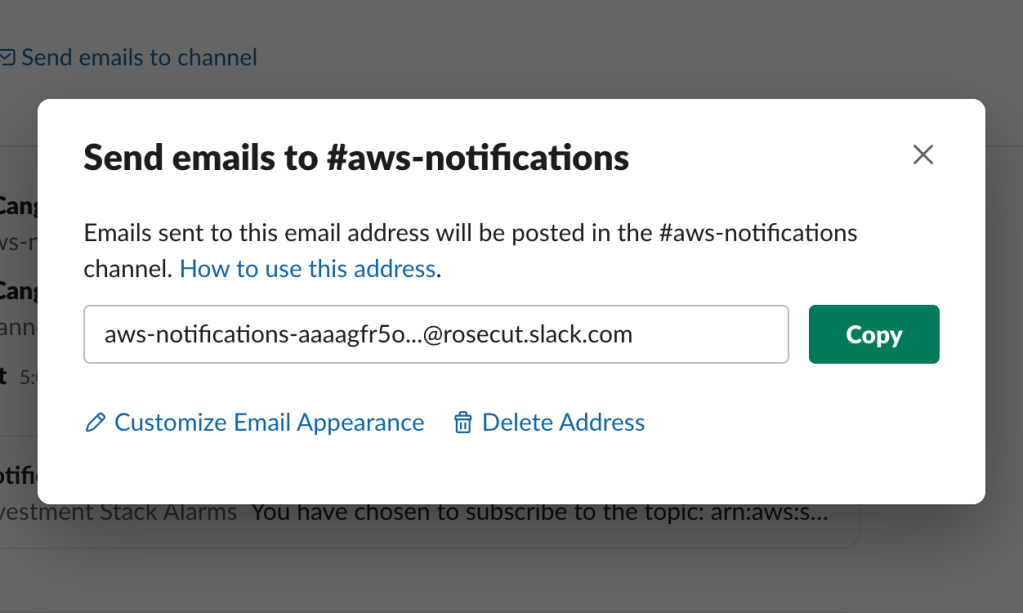
Setting up AWS SNS
Your next step is registering the SNS topic to this email address.
- Sign in to the Amazon SNS console.
- In the left navigation pane, choose Subscriptions.
- On the Subscriptions page, choose Create subscription.
- On the Create subscription page, in the Details section, do the following:
- For Topic ARN, choose the Amazon Resource Name (ARN) of a topic.
- For Protocol, choose Email.
- For Endpoint, enter the email address of your Slack channel.
- Choose Create subscription. The console creates the subscription and opens the subscription’s Details page.
Confirming Email Notification Subscription from SNS
You must confirm the subscription before the email address can start to receive messages. Above steps sends an email to this channel like below screenshot. This first email includes a subscription confirmation link. Opening that link in the browser confirms AWS to send all SNS messages to this channel.

After the email subscription confirmation, you will receive any alerts sent to that SNS topic as an email message to that channel. Although these emails are not easily digestible, it still provides great value for monitoring your systems.
Below is a screenshot of a typical alert sent to this channel opened on a mobile device. The value here is not the format of the email but being able to get notified about an issue on an alert on the go via a Slack channel.

Setting up OK & Alert Notifications
One important observation after using such methods for monitoring the production system is setting up both Alert and OK actions. If you only receive Alerts, your Slack channel will not reflect the latest state of your alerts. This may look like you still have an ongoing issue although it might have already fixed. Also, for any intermittent issues on AWS, the channel may produce unnecessary noise that can lead you missing the signal.
Setting both OK and Alert notifications make sure you only jump on an alert when you don’t receive the corresponding OK notification.
One positive side effect of such setup is receiving an OK notification for every system on a cadence. Maybe this could be debatable and not a preference for all systems but for critical systems, receiving an OK alert on a cadence provides a reliving point.

Summary
The above scenario is good for small teams and systems in production. It provides a minimum viable solution with the least effort for monitoring your production workload. If you have run fast to market using Serverless technology and did not focus on Operational Excellence, the above setup fits in very well. It is a managed solution end to end. Almost all services in a Serverless setup already provides out of box metrics. You can easily create alerts for these metrics and get job done.
For bigger systems, possibly including k8s clusters, containerised workloads, multiple teams and more systematic analysis of production systems by larger operators, the above setup may not be a viable option.
 Mahmut Canga
What do you think?